
Modifold
A step-by-step guide to publishing your mod on Modifold.
Publishing Your Mod on Modifold
Modifold is a modding platform where modders can upload their mods and share them with the community.
This guide follows the real project publishing flow: from signing in to your account to submitting for moderation.
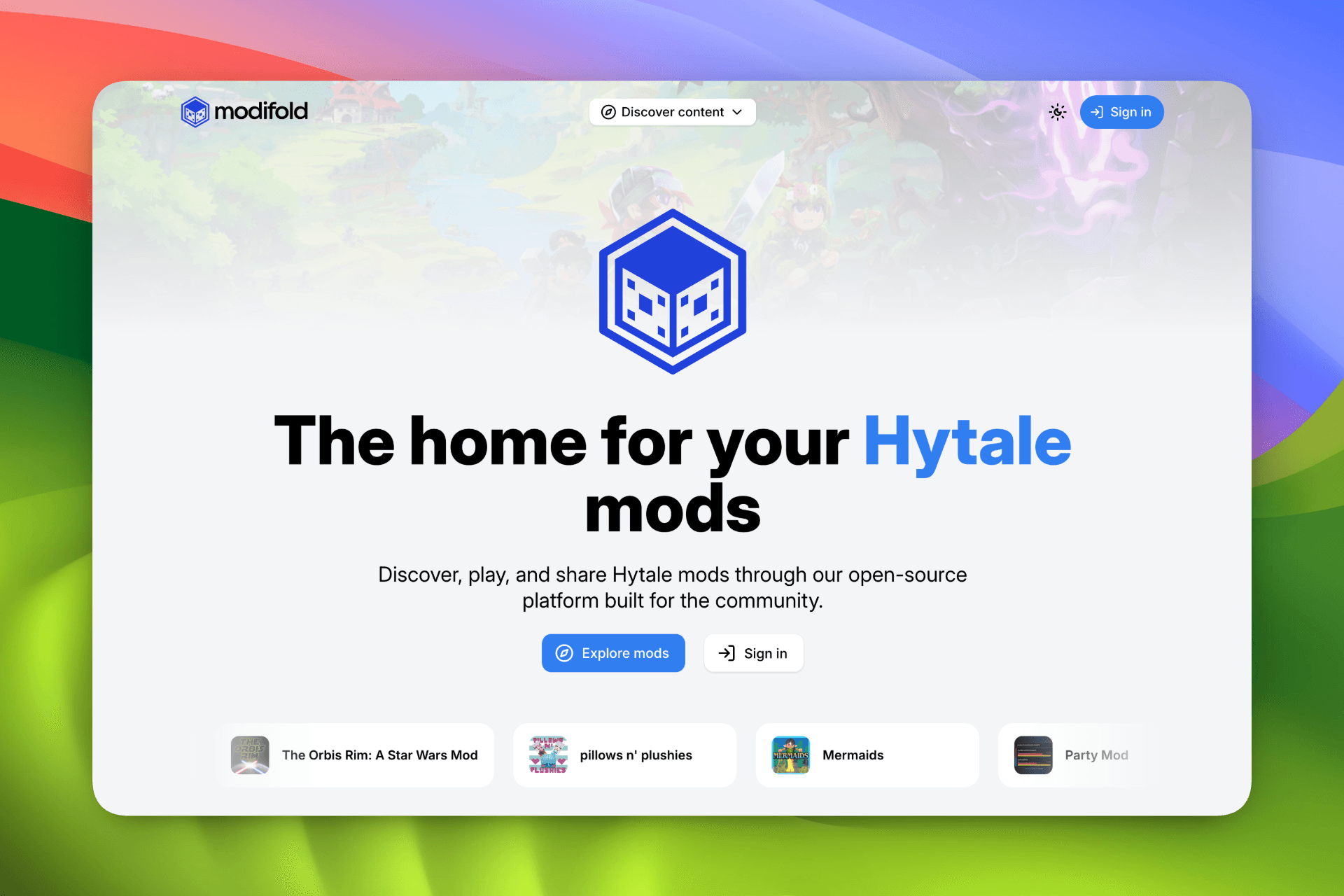
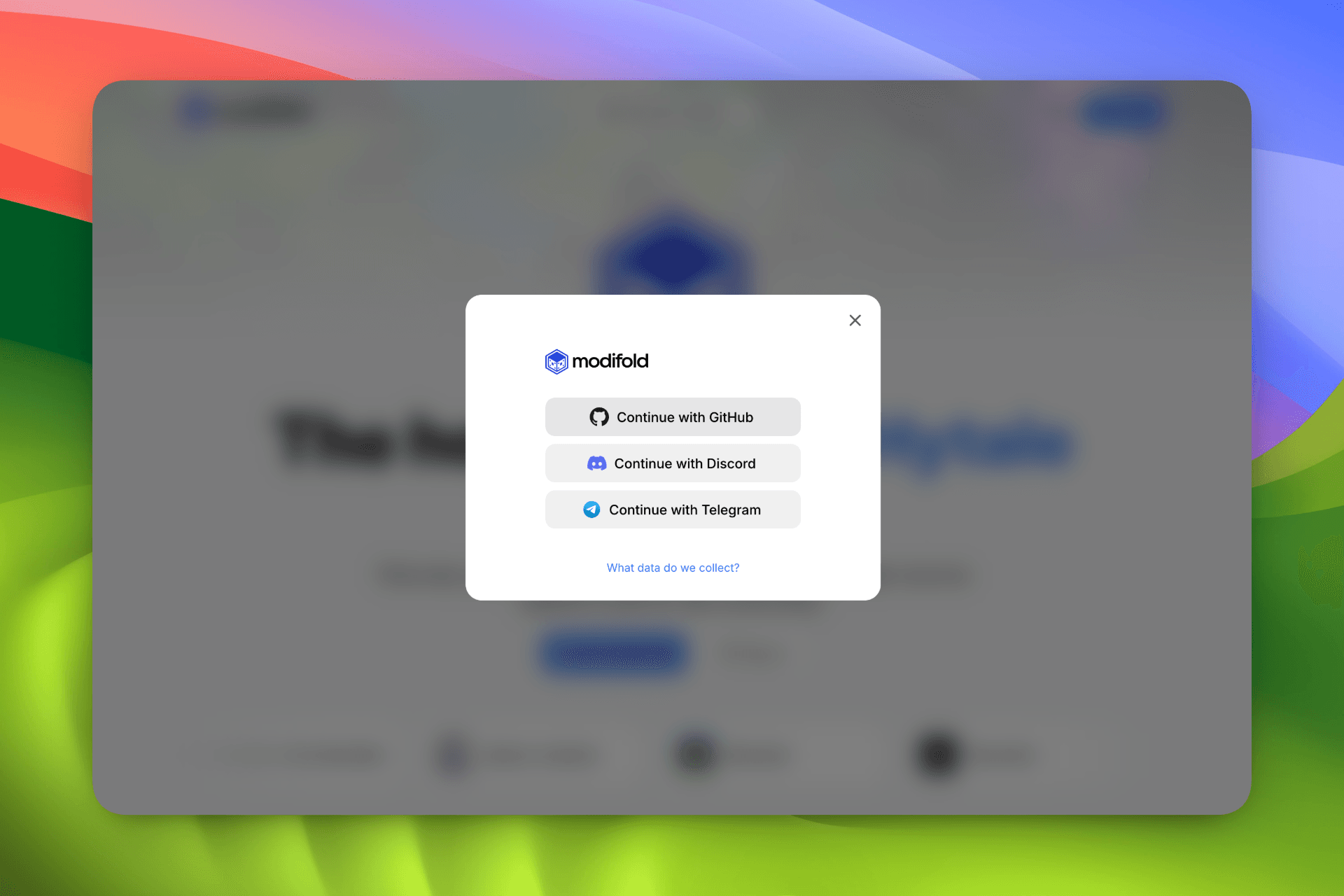
Step 1. Sign In
First, you need to sign in.
In the site header, click "Log in" and choose your preferred sign-in method.
Currently available:
- GitHub
- Discord
- Telegram
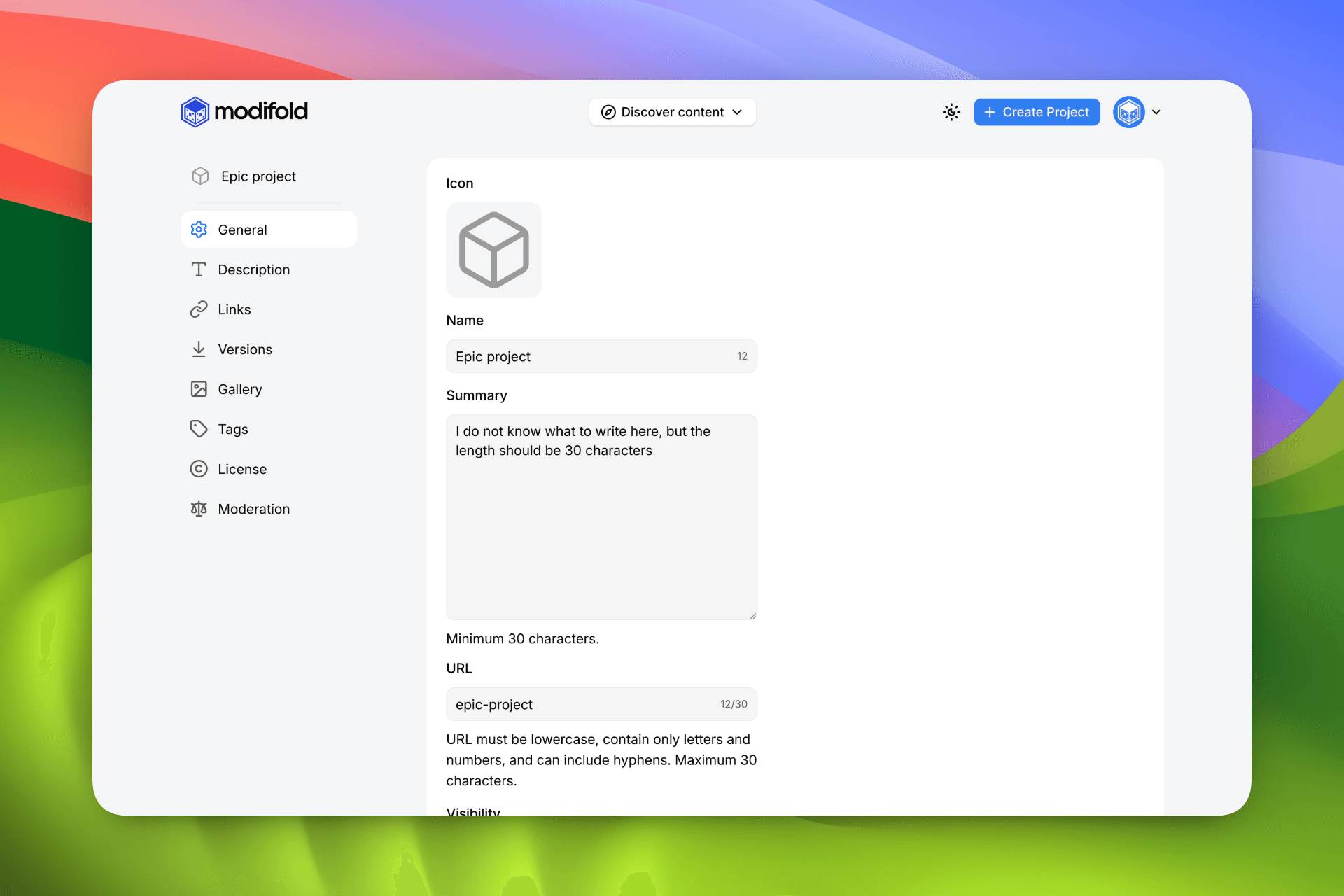
Step 2. Create a Project
After signing in successfully, click "Create Project" in the site header.
Fill in:
- Project name
- Summary (a short description in 1-2 sentences, for example:
This project adds...)
Then click "Create Project".
After creation, you will immediately be taken to the project settings page.
Step 3. Project Icon
It is recommended to upload a project icon first.
It is best to use an in-game preview of your mod so users can immediately understand what the project does.
Uploading an icon is not required, but highly recommended.
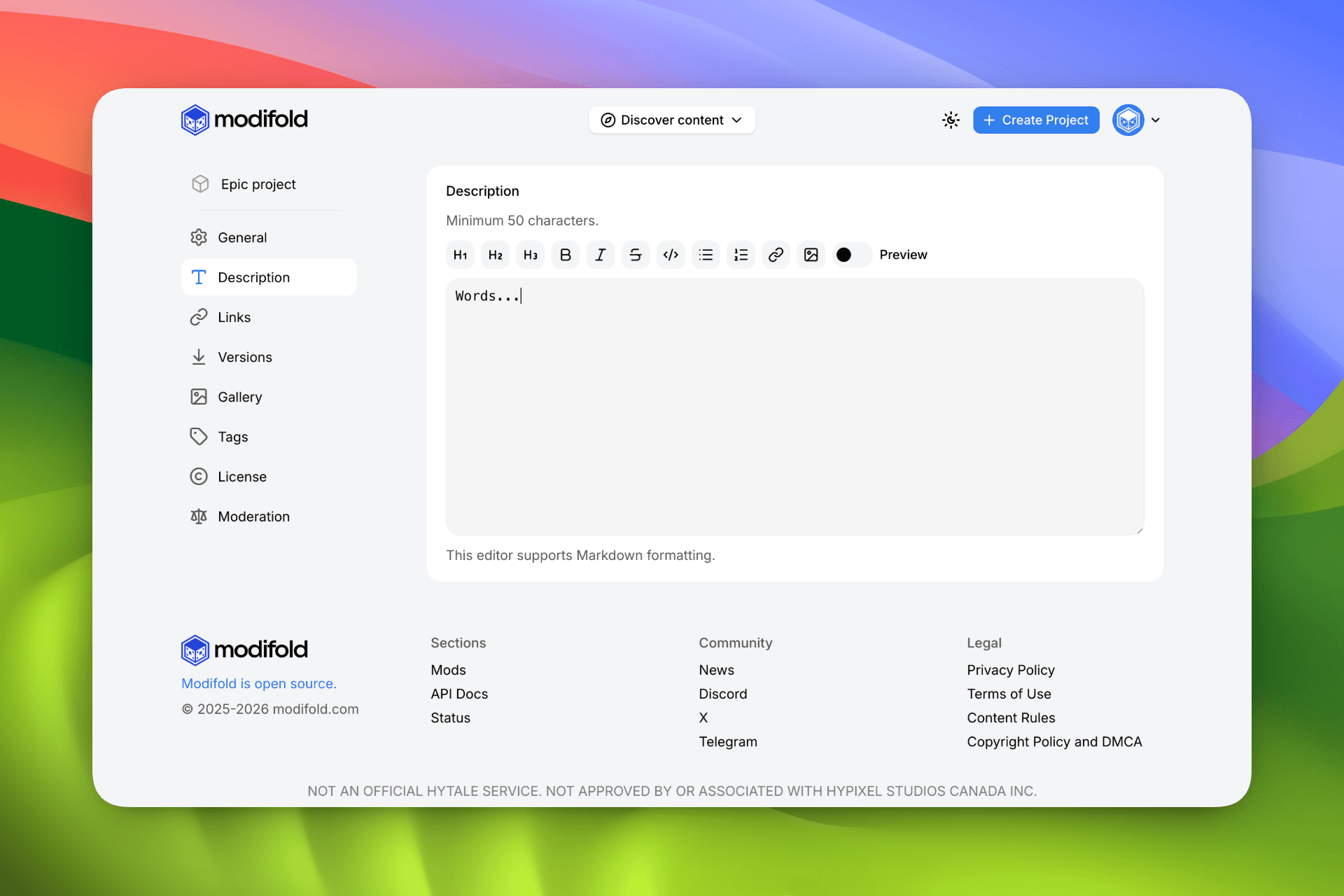
Step 4. Description
Make sure to fill in the project's Description.
Modifold supports a convenient Markdown editor where you can describe in detail:
- what your mod does
- how to use it
- important details for users
Banners linking to other platforms are allowed.
Minimum description length: 50 characters.
Step 5. Upload a Mod Version
This is the most important step.
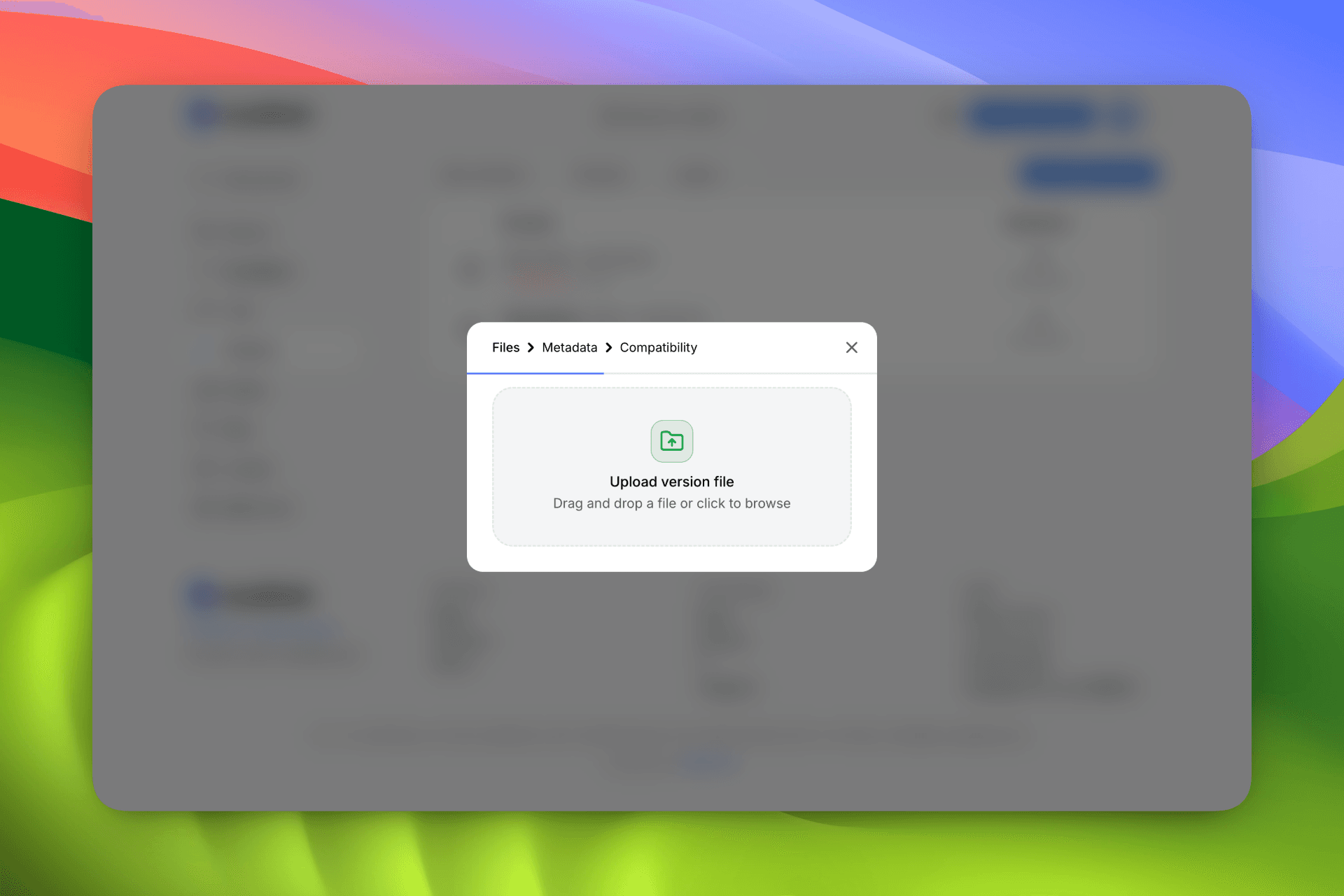
Upload your project version file (for example, .jar) through the upload block:
- drag and drop the file, or
- click the block and select a file from your computer
Then fill in:
- Version number (for example,
1.0.1if this is a fix) - Changelog (optional, in Markdown format)
- Release channel:
Release,Beta, orAlpha
After that, click "Upload Version".
Congratulations, your first version is uploaded.
If you publish on Modifold, keep your project page updated so users can quickly understand what your mod does and which version they should install.
Step 6. Gallery
In the "Gallery" tab (recommended), you can upload images showcasing your mod's features.
One image can be marked as Featured.
The featured gallery image appears in search results and on your project card.
This image will be used as your project's cover.
Step 7. Links
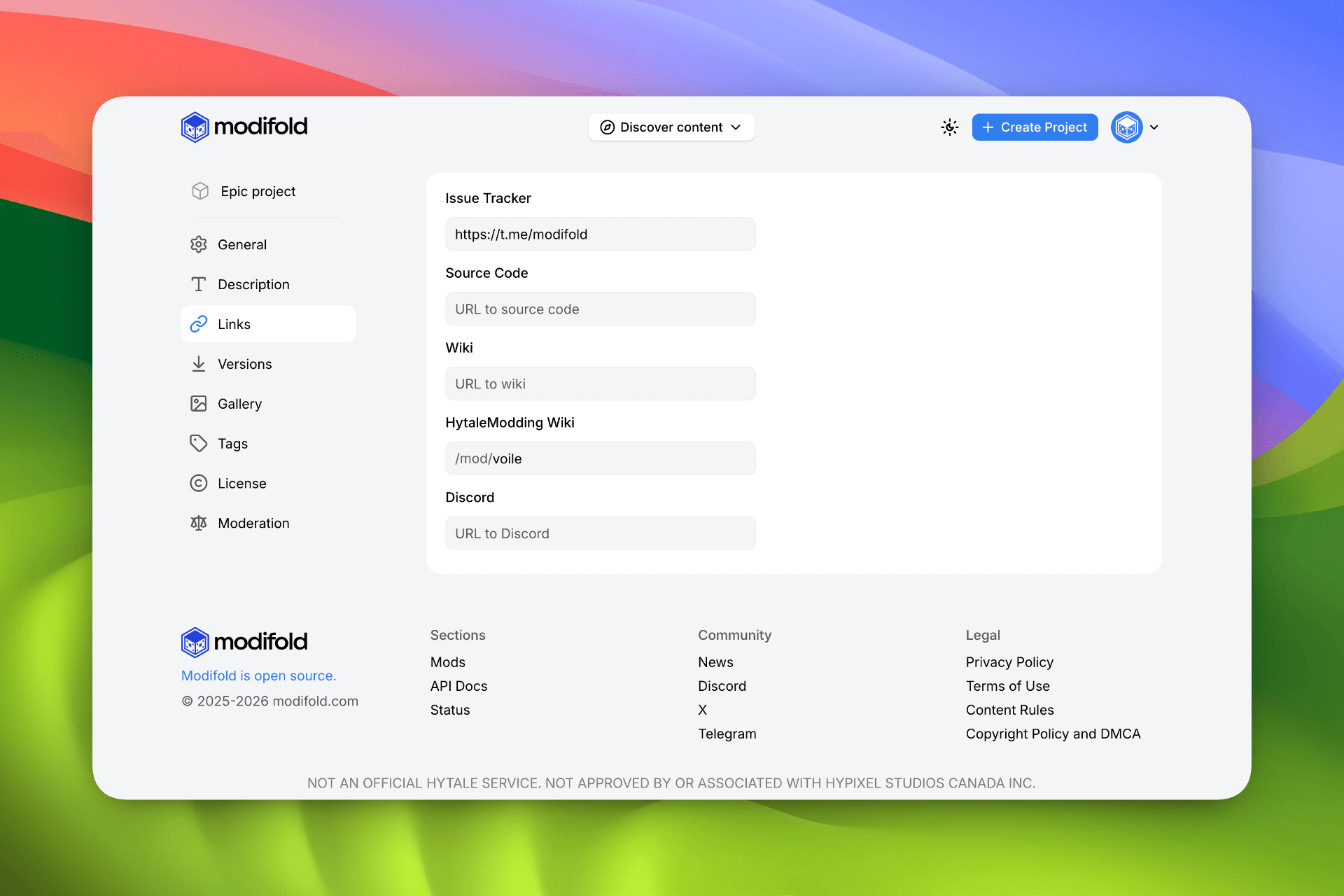
In the "Links" tab, you can add useful project links:
- Issue Tracker
- Source Code
- Wiki (linking to external resources)
- HytaleModding Wiki
- Discord
These links are shown in a separate block on the project page.
Step 8. Tags
In the "Tags" tab (recommended), select relevant project tags.
For example, if your mod adds decorative elements, choose the Decoration tag, then click "Save".
Step 9. License
In the "License" tab, you can set the project license.
By default, the license is ARR (All Rights Reserved), but you can choose another available license.
Step 10. Moderation
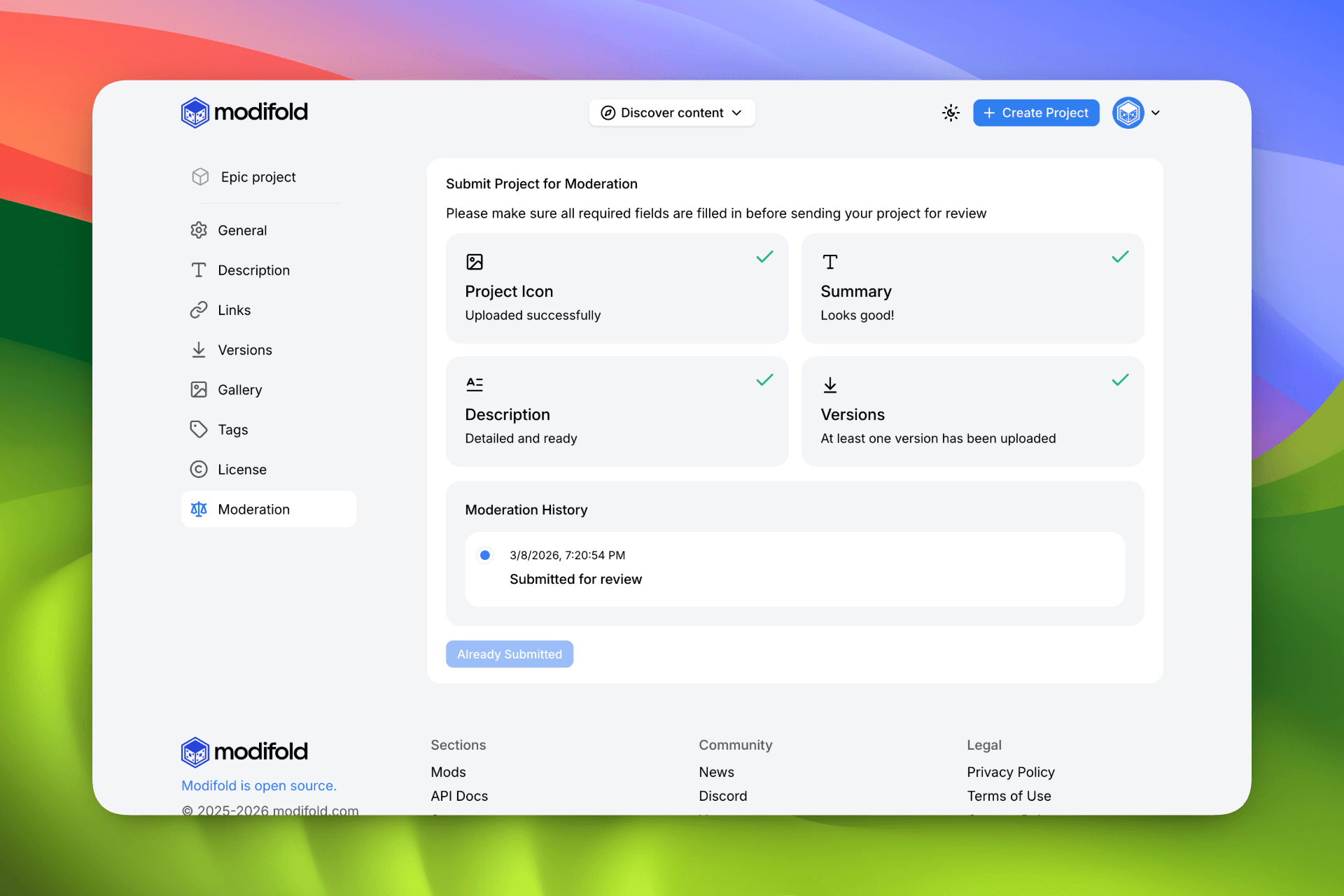
The final required step is the "Moderation" tab.
There, you can make sure all required fields are completed and submit the project for review.
After submission, moderators check:
- compliance with Modifold content rules
- project versions for malware
When the review is complete, you will receive a notification:
- if the project is approved, it becomes public
- if it is rejected, moderators will provide a reason, and you can resubmit after making fixes
Integration with HytaleModding Wiki
If your mod uses HytaleModding Wiki, just add the wiki link in your Modifold project settings.
After that, your project will have a Wiki tab with synchronized pages and Markdown content.
Wiki configuration and editing remain on the HytaleModding Wiki website.
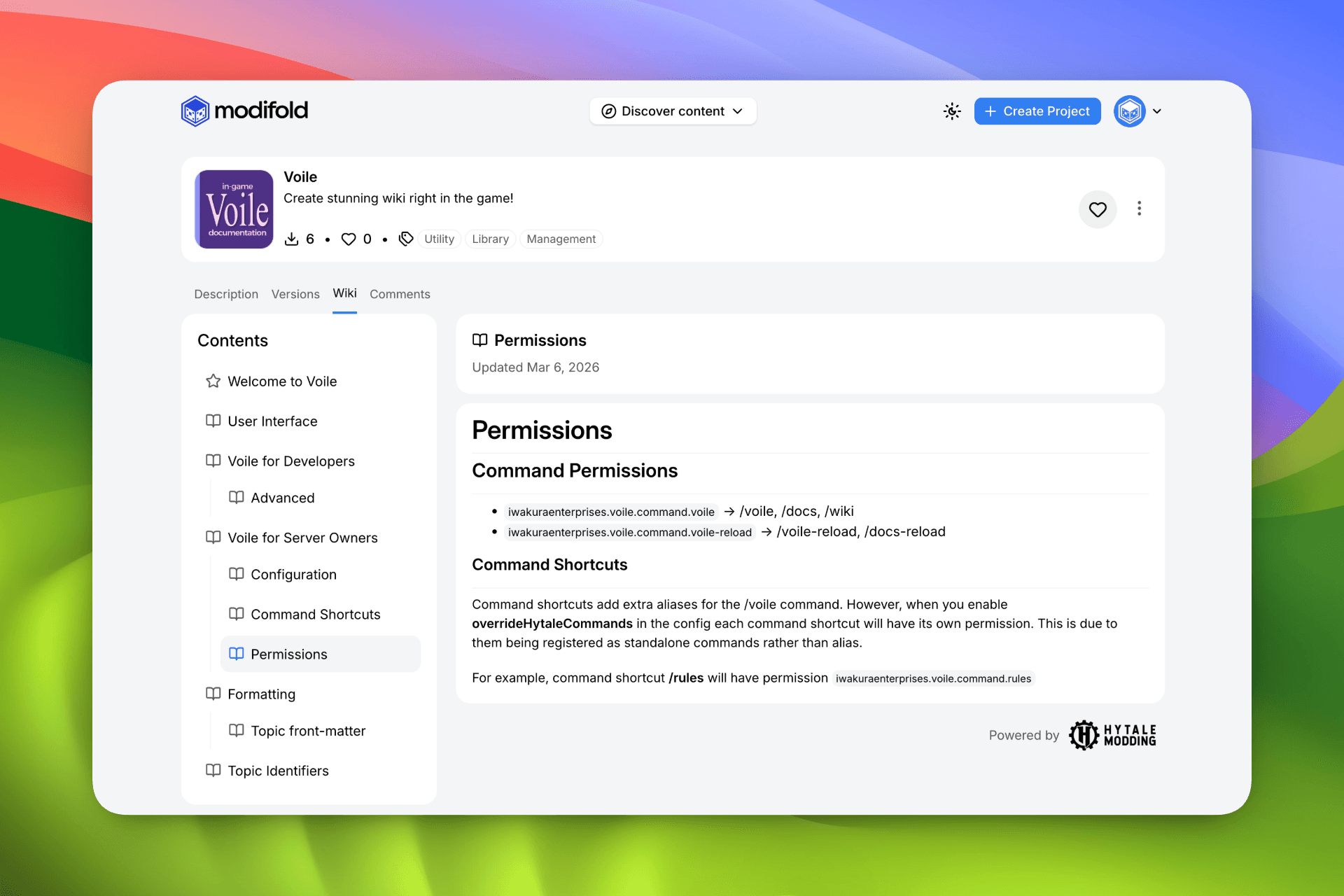
The screenshot above shows the Voile project wiki page: modifold.com/mod/voile/wiki
Getting Help
If you run into issues while uploading your project, please:
- Contact the official Modifold Discord server
- Or email
support@modifold.comwith a description of the issue.